

On Friday, OpenAI launched ChatGPT Space to Plus users around the world. When I opened it, I found everything I ever made with ChatGPT in one place: every Word document, every Excel file, every PDF, presentation, image, and even the sites I built with ChatGPT Sites. So what exactly is ChatGPT Space, and how do you work with it?
What Is ChatGPT Space?
Space is the new home for the pages and files you create, upload and share in ChatGPT. You open it from the sidebar on the left, and all your documents and outputs are there, neatly organized and searchable. Until now, a document or a presentation you made with ChatGPT lived inside the chat where you made it, and finding it again meant remembering which conversation you worked on it in, or searching for specific text from that chat. Space builds within ChatGPT a collection of documents and sites you share with your team and with AI agents.
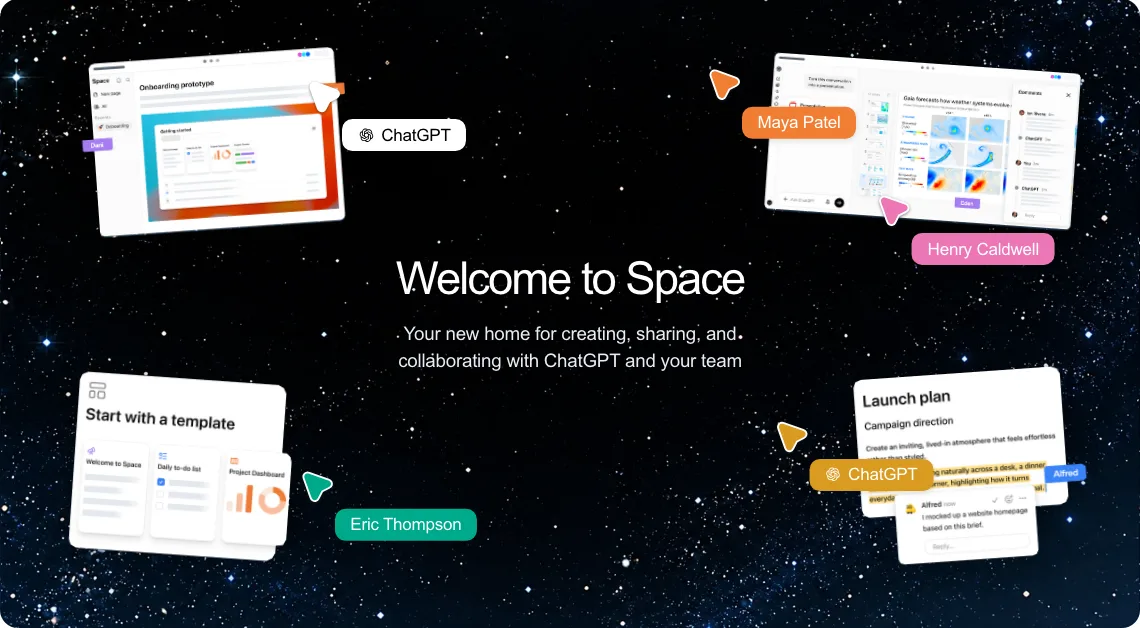
As of today (November 2026), Space is available on the Plus, Pro, Business and Enterprise plans. Here is what you'll find inside:
| Item | What it is |
|---|---|
| Pages | Documents you write and edit together with ChatGPT and your team, with comments and child pages |
| Slides | Presentations built from a conversation, files or a template, which you can present or export |
| Spreadsheets | Tables and calculations you build and edit with ChatGPT |
| Sites | Websites, apps and dashboards you build with ChatGPT |
| Images and files | Every image you created and every file you uploaded to ChatGPT |
| Connected sources | Files from connected apps such as Google Drive, which keep their original permissions |
Everything in One Place
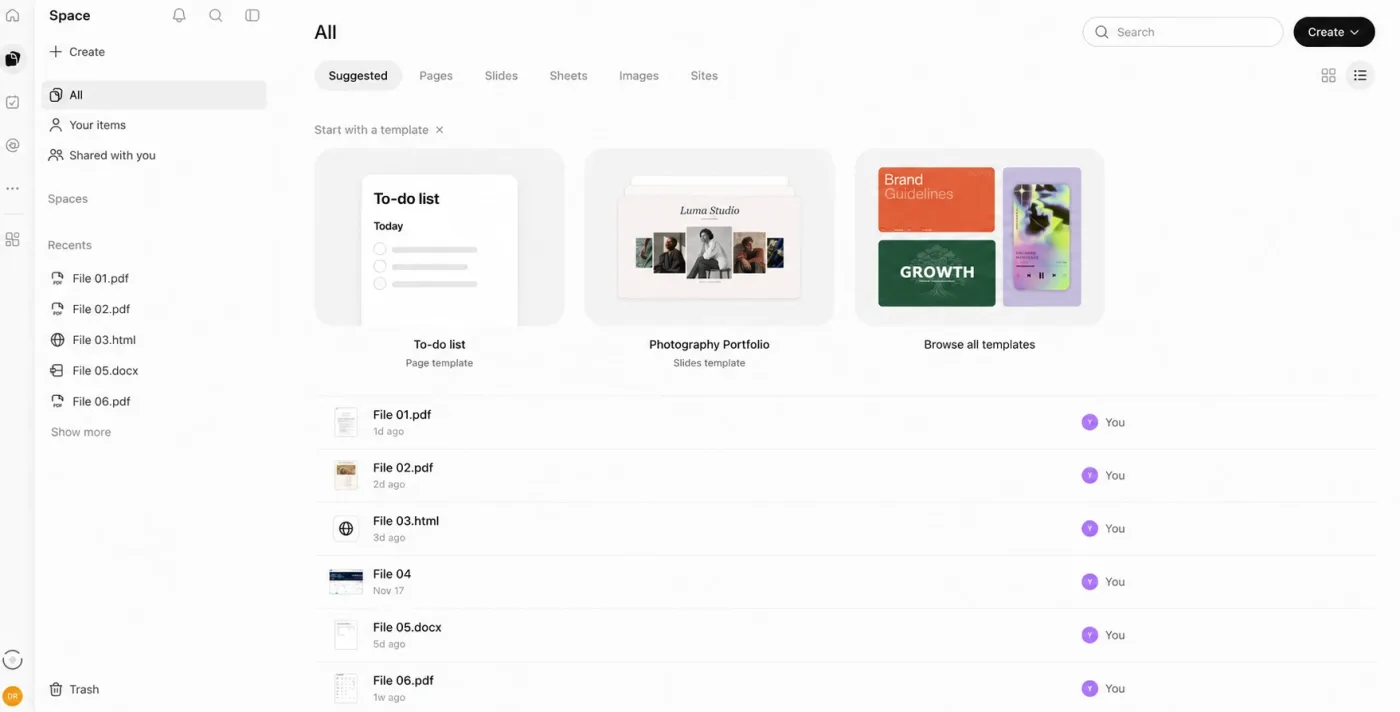
The main screen of Space is a library of all your work. The sidebar has a Create button, views for All items, Your items and items Shared with you, and below them Spaces (shared work areas) and your recent items. The main area has tabs by type: items ChatGPT suggests (Suggested), Pages, Slides, Sheets, Images and Sites. Below them are ready-made templates you can start from, such as a to-do list or a photography portfolio, followed by a list of all your files: PDFs, Word documents, HTML pages and presentations, with who made each one and when. You can search, switch between a list and a grid view, and group pages into separate spaces, one per project or team, so you can share a whole space with the people who work on it.
Two details are worth knowing. First, Space replaces the old image Gallery: the images you created with ChatGPT now sit in Space together with everything else. Second, the "All" view also shows your ChatGPT Projects, even though they don't have a separate tab in Space.
Space vs. Spaces
The names are confusing, so let's sort them out. ChatGPT Space (formerly called Library) is the whole thing: the home for everything you create, upload and share in ChatGPT. Each of the Spaces listed in the sidebar, on the other hand, is a shared work area inside Space that groups pages around one topic or team, such as a project, a client or a research effort. And your ChatGPT workspace is a third thing: the personal or organization account you're signed in to, which decides your settings and the apps available to you. Space shows the work you can access in that workspace.
Spaces matter mostly when you share. Share a page, and the people you invite can open it and its child pages. Share a space, and they get access to every page in it, and you can choose their access level: view, comment or edit. Access to a space is inherited by its pages, so removing someone's direct invitation to a page doesn't remove access they still have through the space. To change that, open the sharing settings of the space itself. Deleting a space moves it to the Trash together with all its pages.
One more point for organizations: when you share a ChatGPT Project, personal Space files are removed from its sources (the original files aren't deleted), while files uploaded directly to the project stay available to all its members.
| Term | What it is | Example |
|---|---|---|
| ChatGPT Space | The home for all your work in ChatGPT (formerly Library) | All your pages, slides, sheets, images, sites and files |
| A space | A shareable work area that groups pages around a topic or team | A client launch, with the work plan, the brief and the meeting notes |
| Workspace | The personal or organization account you're signed in to | Your personal ChatGPT, or your company's Business or Enterprise workspace |
| Project | Chats, files and instructions around one topic in ChatGPT | Shown under All in Space, without a tab of its own |
Pages That Update Themselves
A page in Space is a document you write together with ChatGPT. You can type directly, ask ChatGPT to revise a section, add charts, images and interactive tools, and leave comments for your colleagues.
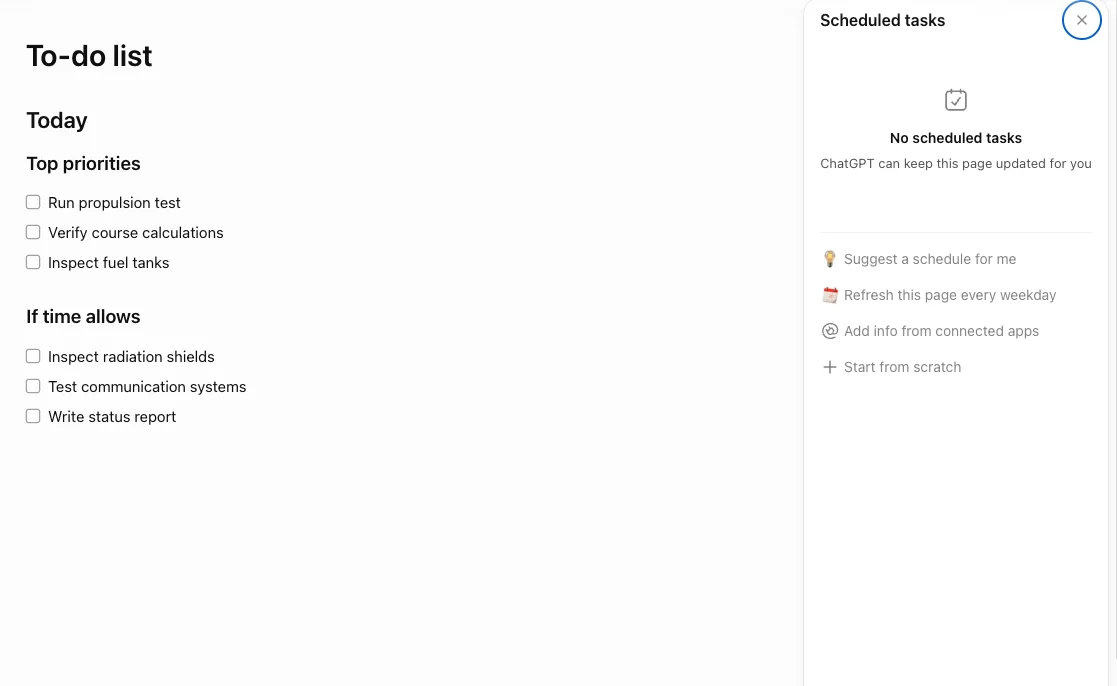
This is where it gets interesting: you can set a page to update itself. You tell ChatGPT what to update, which sources to use and how often to run, and it keeps the page current from your connected apps. A to-do list that refreshes every hour from Slack, a project tracker that pulls the latest status from your team's tools, or a weekly summary of updates from an app.
You set up the automatic updates from within the page itself, in its Scheduled tasks panel. When a page has no tasks yet, ChatGPT offers a few ways to start:
- Suggest a schedule for me: ChatGPT proposes a schedule that fits the page.
- Refresh this page every weekday.
- Add info from connected apps: bring in information from the apps you connected.
- Start from scratch: set up a new task yourself.
After setting it up, make sure the task was saved and is active, and check that the first run actually updated the page. Writing "update this every hour" on the page isn't enough, because that doesn't schedule anything.
Sites as Dashboards
Sites are web pages and small apps you build with ChatGPT just by describing them, without writing a line of code. You can keep a site to yourself, share it with your team or publish it for anyone to use.
I use my sites as dashboards. Each one collects information from my connected apps and displays it on one screen. One of them shows my stock portfolio, including the buy and sell decisions made by my AI agents. Instead of opening five different apps to understand what happened, I open one page.
This is a new way to think about dashboards in an organization. Instead of waiting for a developer or a BI team to build a report, you describe what you want to see, connect the sources, and ChatGPT builds the page and keeps it updated. We build exactly these kinds of tools in our Vibe Coding workshop, and the ChatGPT Advanced Tools workshop covers how to get the most out of Space, Projects and connected apps.
One word of caution: when agents act on your behalf, and certainly when money is involved, the dashboard keeps you in control. Check what they are doing, and make sure that approval for important actions always stays with you.

Humans and Agents Together
Space is built for teams. Share a page and choose view or edit access, and your colleagues can edit the same draft, leave comments and ask their own ChatGPT to make changes. Sharing a page does not share your private chats or your ChatGPT memory, but anything copied or summarized onto the page is visible to everyone who can open it.
AI agents join the team too. If you have a dot, OpenAI's always-on personal agent (I wrote about them in my post From ChatBots to Personal Agents), you can ask it to keep a project plan updated, organize next steps or revise a slide, using the context it finds in Space. As of November 2026, dots are available on the Pro, Business Premium and Enterprise plans in eligible markets.
For organizations, all this raises the questions we deal with in our AI Transformation Program: which apps to connect, who may share what with whom, and which data should never be copied onto a shared page. It's worth answering them before the whole team starts building.
Summary
For me, the change is simple: everything I made with ChatGPT is finally in one place, and my dashboards keep themselves up to date. If you're on a Plus plan or above, open Space from the sidebar, look at what's already there, and then try one thing: take a report you update by hand every week and turn it into a page that updates itself. Want help doing it for your team? Send me a WhatsApp message.